

A single-page report is a formatting exercise. A hundred-page document is an architecture problem.
When a financial statement runs to 80 pages, a portfolio report to 120, or a compliance pack to 200, the challenges aren't about making charts look good. They're about whether the table of contents reflects what's actually in the document, whether a wide table breaks cleanly across a landscape page, whether subreport sections are isolated enough to reuse across multiple reports, and whether a change to the header on page 12 doesn't require manually touching 60 other pages.
This article covers the structural building blocks of multi-page document generation-the patterns that work, where the complexity lives-and how CxReports addresses each one.
What makes long-form documents hard
Most PDF generation tools handle simple layouts adequately. The friction surfaces when documents have structure: different page types, content that flows across pages in non-obvious ways, sections that repeat per data row, and navigation elements (page numbers, tables of contents) that must stay correct as content shifts.
The specific problems:
Page type variation. A professional document has a cover page (no page number), a table of contents page (referenced but not counted the same way), standard portrait body pages, and likely landscape pages for wide tables. Each has different margins, headers, footers, and layout rules. A system that treats all pages identically forces workarounds.
Automatic navigation. A table of contents must reflect actual page numbers-which means the system has to know where sections end up after pagination before it can render the TOC. This is a two-pass problem many tools handle poorly, resulting in stale page numbers or TOC that must be updated manually.
Content flow. A table with 400 rows spans multiple pages. A rich text block containing several paragraphs flows across a page boundary. A subreport repeats once per client. Each of these needs to respect page boundaries intelligently-not truncate content, not insert awkward breaks in the middle of a row, not lose track of running headers.
Consistency at scale. A change to the document's footer-add a compliance statement, update the logo-should propagate to every page it applies to, not require editing each page individually.
Reuse across reports. An investment portfolio document and a client statement may share a holdings table section. Maintaining two copies of that section means two places to fix when the format changes.
Page types and templates: the structural foundation
The foundational concept in multi-page document design is the page type: a definition of what a page looks like structurally-its orientation, margins, header, footer, and whether it contributes to the page count.
In CxReports, each page type is defined from scratch according to its purpose: you specify the size, orientation, and whether it contributes to the page count. There are no locked-in presets-the definition is yours to configure fully.
In practice, most documents converge on a familiar set of configurations:
- Regular (body) pages - standard portrait, countable, numbered in sequence
- Cover pages - typically non-countable, so they don't appear in the page number sequence; styled distinctly with introductory content and branding
- Rotated (landscape) pages - wide-format orientation for tables or data sets that don't fit in portrait; countable, numbered in sequence with body pages
- Blank pages - inserted for print layout or section separation purposes
Each of these is fully customisable-size, margins, header/footer content, orientation-and each maps to a page template that applies that definition consistently across all pages of that type.
This matters most for page numbering. A document might open with a cover (uncounted), a TOC page, 60 body pages, several landscape pages, and close with a legal disclaimer (uncounted). The page numbers in headers and footers reflect only the counted pages, in sequence, regardless of which page type is rendering.
Each page type uses a page template that defines the header, footer, and overall layout structure for pages of that type. A body page template has the standard header and footer; a landscape page template may have a different header. One change to a template updates every page using it throughout the document.
Automatic navigation: TOC, numbering, and figure references
Table of contents
CxReports generates a table of contents automatically from the heading structure of the document (H1 for major sections, H2 for subsections, and so on). The TOC component is placed on its designated page; page numbers populate after pagination is resolved-meaning they reflect where content actually lands, not where it was expected to land.
A typical TOC for a quarterly investment report:
Executive Summary ...................... 2
Portfolio Overview ..................... 5
  Asset Allocation ..................... 6
  Performance Summary ................. 8
Holdings Detail ....................... 13
  Equities ............................ 14
  Fixed Income ........................ 22
  Alternatives ........................ 30
Risk Analysis ......................... 36
Transaction History ................... 44
Appendix .............................. 58
When content is added or removed and sections shift by several pages, the TOC updates to match. This eliminates the manual page number maintenance that makes long document editing painful.
Table of figures and auto-numbering
For documents with multiple charts, tables, or exhibits that need to be cross-referenced-audit packs, analytical reports, regulatory submissions-CxReports supports a table of figures alongside the TOC. Figure captions are auto-numbered throughout the document (Figure 1, Figure 2, …), and the table of figures lists each with its page reference. Adding or reordering a figure updates the numbering and the table automatically.
Content flow: tables, text, and subreports across pages
Tables spanning multiple pages
A data table with hundreds of rows needs to flow across pages correctly: column headers should repeat at the top of each continued page, rows should not be truncated at a page boundary, and the table should resume naturally on the next page without manual intervention. For a billing example where one customer can have hundreds of usage rows, see Telecom and Subscription Billing at Scale.
CxReports' table component handles this automatically. Configuration options include row grouping (grouping rows by a common value with subtotals), aggregation (sum, average, count at group and total levels), and multi-line headers for complex column structures. The table renders into however many pages the data requires, with consistent header repetition. For a legal billing example that groups time entries by matter and timekeeper with subtotals, see Law Firm Billing and Client Statements at Scale.
For data sets that need completely custom table structures-unusual layouts that the standard table component doesn't cover-the Custom Table widget provides full control over table structure and appearance while still participating in the document's page flow.
Rich text and HTML content
Long-form text content-regulatory language, narrative sections, commentary-is authored as rich text or HTML and flows naturally across page boundaries. The content is not constrained to fit a single page; it continues onto subsequent pages as required, respecting the page template's header and footer on each continued page.
Flow containers for complex layouts
The Flow component organises child components in flexible horizontal or vertical layouts with configurable alignment, spacing, and wrapping. For multi-column page sections-two-column text layouts, side-by-side charts, key figures alongside descriptive text-Flow containers are the mechanism for achieving the layout within a page.
Subreports: modular and reusable sections
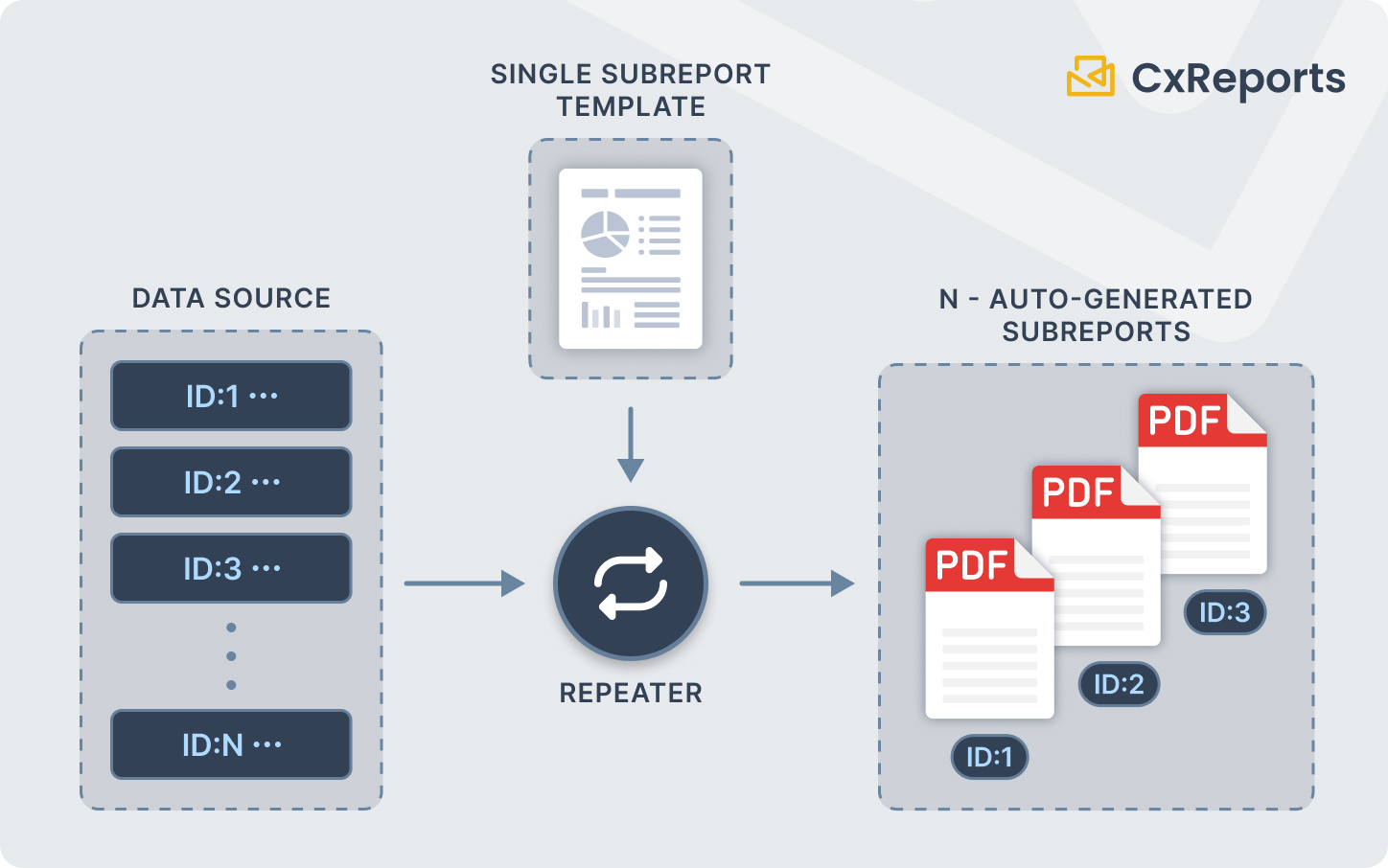
Subreports are fully independent reports-with their own parameters, data sources, and dictionaries-that can be embedded within a parent report. This is the primary mechanism for both reuse and data-driven repetition.
Reuse across reports: a holdings table section that appears in both a quarterly report and an annual summary is built once as a subreport and embedded in both parent reports. When the format changes, one edit propagates to every report that uses it.
Data-driven repetition: a subreport can repeat once per row returned by a SQL query. A portfolio report that has one section per asset class is implemented as a single asset-class subreport repeated for each record. A client book with a full client section per client repeats a client subreport for each client record. For how conditional parameters control which subreport sections render per investor type, see Conditional Sections in Financial Documents. The parent report defines the structure; the data determines how many times the subreport appears. For an example of multi-service billing built from separate sections, see Utility Billing Statement Automation.
Parameter mapping connects the parent report's context to each subreport instance-the current client ID, the current asset class, the current date range-ensuring each instance receives the appropriate data scope.
Document merge
For documents where an external PDF must be incorporated-a signed agreement appended to a generated report, a pre-existing exhibit attached to a compliance submission-the Document Merge feature allows attaching an existing PDF to the generated document. The attached PDF is integrated as additional pages within the output, with a page template applied for header/footer consistency. Page ranges can be specified to include only specific pages from the source document.
Consistency: themes and page templates
Themes
A theme defines the visual language of the document: typography (font families, sizes, weights per heading level and body text), colors, table styling (header backgrounds, alternating row colors, borders), and chart appearance. One theme applies across all pages of the document.
The practical implication: a rebranding-new primary color, updated font-is a single theme edit that updates every heading, every table, every chart in every report using that theme. Reports that reference the theme update when the theme updates; there's no per-page or per-component styling to hunt down.
External CSS can be incorporated into a theme for organisations that already maintain detailed CSS style specifications.
Page templates
While themes define visual style, page templates define structural layout-where the header sits, what it contains, where the footer appears, what the margins are. Templates are defined per page type.
This creates a clean separation: the theme says what the header looks like (font, color, logo size); the page template says where the header is and what elements it contains. Both propagate automatically to every page of their respective type.
Where multi-page generation is most demanding
The pattern of page types, automatic TOC, data-driven subreports, and shared themes appears across several document categories that are genuinely demanding from a layout perspective:
Wealth management and portfolio reports typically run 50–150 pages: cover, executive summary, asset allocation section, per-holding detail (subreport repeated per position), performance charts, transaction history (data table spanning multiple pages), risk analysis, and regulatory disclosures. The combination of dense tabular data, multiple landscape pages for wide tables, automatic TOC, and per-client personalisation is representative of the upper end of what's required.
Financial statements and audit packs often have strict layout requirements-specific column structures, mandated disclosures at defined positions-alongside high volume and regular cadence. Template stability (consistent layout across reporting periods) and the ability to attach external supporting documents via Document Merge are characteristic requirements.
Legal and compliance documents (contracts, policy documents, regulatory submissions) combine long-form text with structured tables and exhibits, require precise pagination and cross-referencing, and often need to attach external PDFs. Cover pages, numbered sections, figure references, and appendices are all standard structural elements.
Operational reports at scale-daily performance packs, regional summaries, monthly management reports-combine volume (generated for many entities) with structural complexity (multiple sections, multiple data sources, consistent branding across all instances). Subreport-per-entity patterns and automated scheduled generation are the standard approach.
Getting started with CxReports
| Multi-page requirement | CxReports primitive |
|---|---|
| Cover page (uncounted) | Page type defined as non-countable |
| Portrait / landscape page variants | Page type defined by orientation (portrait or landscape) |
| Consistent headers and footers | Page templates per page type |
| Automatic page numbering | Built-in to countable page types |
| Table of contents | TOC component (auto-generated from headings) |
| Table of figures | Table of Figures component + figure captions |
| Multi-row tables with repeating headers | Table component with row grouping and aggregation |
| Reusable report sections | Subreports with own parameters and data sources |
| Per-data-row section repetition | Subreport repeated via SQL query |
| Multi-column / flexible page layouts | Flow component (horizontal/vertical, wrap) |
| Attach external PDF | Document Merge |
| Global visual style (typography, color, tables) | Themes |
| Structural layout per page type | Page templates |
Documentation: docs.cx-reports.com
Subreports: docs.cx-reports.com/reports/subreports
To see multi-page document generation with your own data and structure, request a demo.