

Most compliance failures in reporting don't come from bad data. They come from not being able to prove anything about the reports that were sent.
An auditor asks: "Show me who generated the Q4 financial summary sent to the board on December 15th, and confirm it hasn't been changed since." If your answer involves searching email folders and asking colleagues, you already have a problem-not with your reporting tool, but with your reporting process.
This article walks through the four areas that determine whether your reporting setup can survive an audit: audit trails, data retention, scheduled evidence delivery, and access control. It explains what each area requires in general, and then shows how CxReports' built-in features map to each one.
What compliance-ready reporting actually requires
Before looking at tools or features, it helps to be clear about what auditors and regulators actually test. Across SOX, HIPAA, GDPR, and most financial services regulations, the questions come down to four things:
1. Traceability: Can you show who generated a specific report, when, and what inputs were used?
2. Integrity: Can you prove the report hasn't been altered since it was produced and delivered?
3. Retention: Are reports and their metadata kept for the legally required period, and can you retrieve them on demand?
4. Access control: Can you demonstrate who had permission to create or modify reports, and that unauthorized changes were prevented?
If you can answer all four, you're audit-ready. If you can answer three, the fourth is where you'll get a finding. Most organizations fail on traceability and integrity-not because they lack the data, but because it's scattered across email folders, shared drives, and people's memories.
Audit trails: what to capture and where it lives
An audit trail for reporting is not the same as application logs. Application logs tell you that a button was clicked. An audit trail tells you what was decided, by whom, and what was produced as a result.
What CxReports captures automatically
For jobs (scheduled or triggered deliveries), CxReports keeps a run history that records:
- When each run started, and whether it is in progress or finished
- Each entry's status (for example completed, pending review, rejected, generation failed, or delivery failed)
- The PDFs each entry produced, downloadable from the run
- Each delivery's status, so you can see what was sent, and to whom
For reports exported directly through the editor or the API, CxReports does not provide a user-facing generation log. If you need to answer "who generated this, when, with which parameters?" for those exports, record it in the calling system or your own process.
The prerequisite for any of this is that users and integrations have individual accounts. If your team shares a login, all traceability collapses to a single actor. Individual accounts are the minimum viable requirement for any audit trail.
What you implement on top
CxReports gives you the job run record. The rest of the audit trail-a record of direct exports, parameter logging, long-term delivery evidence, and template version tracking-is your layer to build.
Parameter logging: Reports use parameters (date ranges, account IDs, department filters) to define what data was included. For high-stakes reports, log who ran the report and which parameters were used for each run. A simple spreadsheet or database table is sufficient:
| Report | Generated by | Date | Parameters | Delivered to |
|---|---|---|---|---|
| Q4 Financial Summary | J. Smith | 2025-12-15 | Oct–Dec 2025, All Depts | board@company.com |
Template version tracking: CxReports supports exporting templates, themes, parameters, and report types as JSON files via the Data Export function. Use this to snapshot your template configuration at meaningful points (before major changes, at quarter-end, before regulatory filings). Store the exported files in a version-controlled location-a Git repository, SharePoint library, or named folder structure with dates. When an auditor asks "what template version was used for the March filing?", you retrieve the snapshot from that period and load it back via Data Import.
Delivery confirmation: If you use CxReports' email delivery, record the sent timestamp and recipients from the job execution log. If reports are downloaded by users, your access logs capture who downloaded what. Either way, build a delivery record you control-not one that lives only in someone's inbox.
Data retention: where reports live long-term
CxReports is a generation engine, not a long-term document store. Generated PDFs and their metadata can be stored within CxReports for working access, but your retention architecture-where reports are kept for years, under legal hold, and retrievable on demand-is something you build around it.
The pass-through model
The most straightforward approach: CxReports generates the report and delivers it to external storage in the same automated step. CxReports supports direct delivery to Google Drive as a native job output. Configure a job to generate a report and upload the PDF to a designated Google Drive folder automatically, with the subfolder path constructed from a date pattern (e.g. {[new Date()]:dt;YYYYMMMdd} creates a dated subfolder per run). The result is an automatically organized archive of generated reports without manual file handling.
For S3, SharePoint, or other storage targets, the pattern is: CxReports delivers via email or API, and your receiving process (a script, a cloud function, or a workflow tool) deposits the file into long-term storage and logs the reference. CxReports is the source; your storage infrastructure is the destination.
PDFs as immutable evidence
A generated PDF is naturally immutable in the sense that it's a point-in-time snapshot of data and layout. Once generated, it doesn't change when underlying data changes-that's the point. To make this auditability formal, the practice is to store the PDF in a location where it cannot be modified after deposit (object storage with versioning enabled, or a document management system with check-in controls), and optionally compute a hash of the file at generation time to enable integrity verification later.
CxReports does not compute content hashes natively. If hash-based integrity verification is required, implement it at the point of receipt: when the report lands in your storage system, compute and store the hash alongside the file. Any future verification re-hashes the stored file and compares. This is a one-page script sitting at the boundary between CxReports' output and your storage layer.
Retention tiers
Not all reports need to be kept at the same level of accessibility for the same duration. A practical tiered model:
| Tier | What | Duration | Access |
|---|---|---|---|
| Active | Recently generated reports, in use | 1–3 months | Immediate, in CxReports or working folder |
| Archive | Historical reports, compliance evidence | 3–7 years (varies by regulation) | Retrievable on request, external storage |
| Legal hold | Reports under dispute or investigation | Indefinite until released | Locked, tamper-evident |
Define your tiers by regulation and document type, not by tool. SOX financial records typically require 7 years. GDPR creates a competing pressure: retain only what you need, for only as long as you need it. The tension between "keep everything for audit" and "delete personal data when no longer needed" requires a policy decision-one that CxReports' workspace and job configuration then implements.
Scheduled compliance reporting: automating the evidence trail
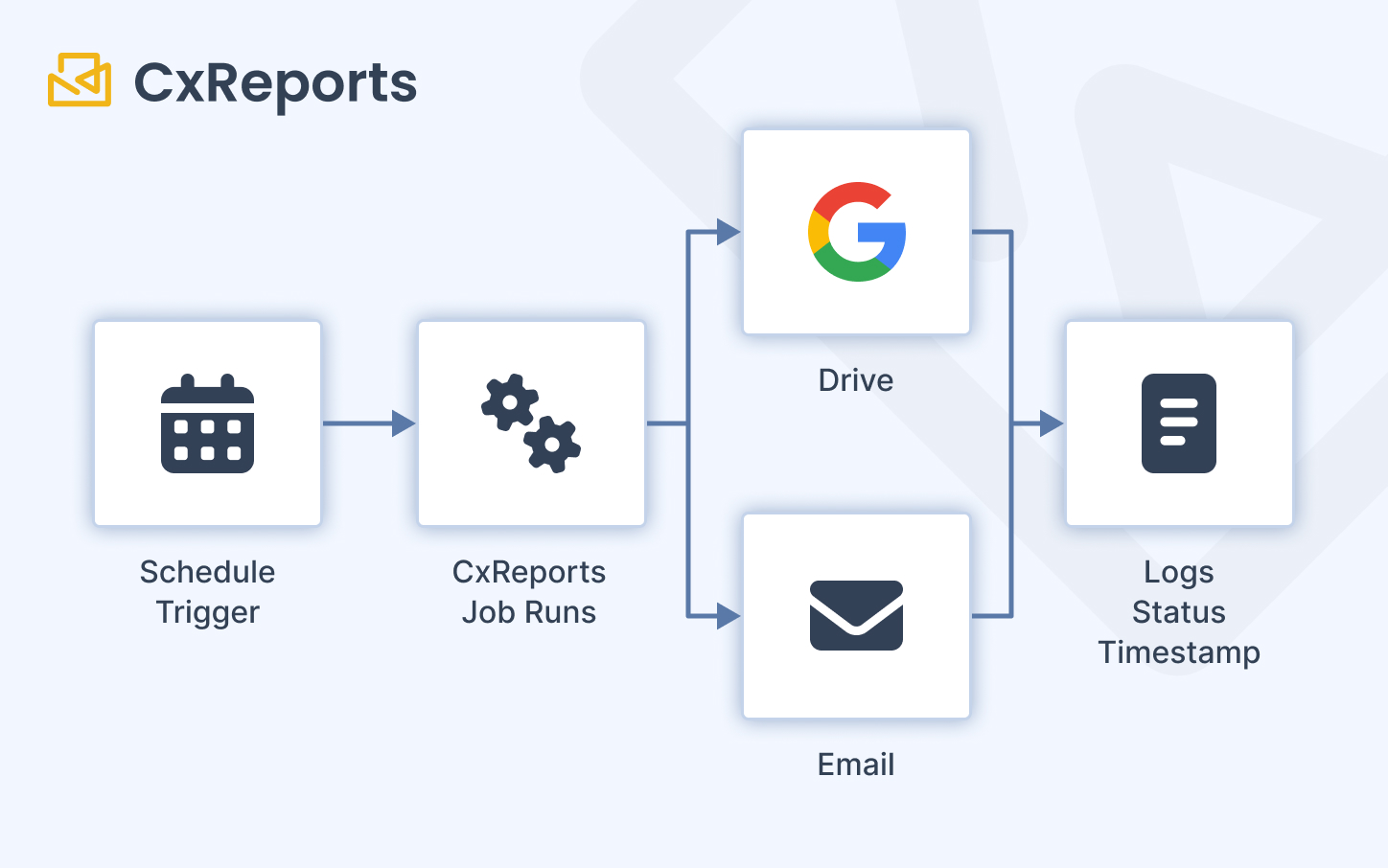
The most reliable audit trail is one that doesn't depend on someone remembering to run a report and save it correctly. Scheduled jobs in CxReports are the mechanism for turning recurring compliance reports into automated processes, consistently.
How jobs work
A job in CxReports is a scheduled task that generates one or more reports and delivers them. Configuration covers:
- Schedule: daily, weekly, monthly, or custom day/time combinations. Monthly options include relative day rules (e.g. last Monday of the month) for regulatory cycles that follow calendar patterns.
- Report attachment: select which reports to generate, with parameter mapping per report (so the job passes the correct date range, account scope, or other filters automatically).
- Recipients: fixed email addresses, CC/BCC lists, or data-driven recipient lists pulled from a data source-so the right report reaches the right person without a manual distribution step.
- Google Drive delivery: reports can be delivered directly to a designated Drive folder, with automatic subfolder creation by date.
- Dynamic naming: report output names can be templated using date expressions, so files are automatically named with the period they cover.
What this means for compliance
A well-configured job produces a verifiable, timestamped evidence record with every run:
- The job execution log shows when the job ran and whether it succeeded or failed
- The generated report is delivered to a defined destination at a defined time
- Recipients and delivery paths are fixed in the job configuration, not decided ad hoc each cycle
- Parameter mapping ensures the correct data scope is used for every run
For a monthly regulatory filing, for example: configure a job to run on the first business day of each month, generate the prior-month report with the correct date range parameters, deliver to the compliance team by email and upload to a dated Google Drive subfolder. The job runs unattended, the record is automatic, and the filing process is consistent across months and personnel.
Access control: separation of duties in practice
The compliance requirement for access control in reporting is separation of duties: the people who generate reports should not be the same people who can modify the templates those reports use, and neither group should be able to alter audit records.
Workspace roles in CxReports
CxReports provides custom role creation per workspace. Each role is configured with No Access, Read, or Full Access for each capability area: Reports, Templates, and Themes. The default Administrator role has full access to everything. All other roles are defined according to your organisation's needs.
This maps directly to separation of duties:
| Role | Reports | Templates | Themes | Suited for |
|---|---|---|---|---|
| Report Consumer | Read | No Access | No Access | Users who view or download reports only |
| Report Generator | Full Access | No Access | No Access | Operations staff who run reports but cannot modify templates |
| Template Editor | Read | Full Access | Full Access | Finance/design staff who maintain report layouts |
| Administrator | Full Access | Full Access | Full Access | System administrators only |
A Report Generator can run any report in the workspace but cannot modify the template it uses. A Template Editor can change layouts but the change process (documented externally, approved by a manager) is where your change control sits. Administrators manage the system but should not be the same people running compliance-critical reports.
Workspace separation adds the outer boundary: a Finance workspace contains only the finance team. HR staff are not added to it, regardless of their role. An auditor asking "can HR access financial reports?" gets a demonstrable no: they are not users in that workspace.
What to document for auditors
Access control is most convincing when it's documented, not just configured. Keep:
- A record of which users are in each workspace and what role they hold
- A log of access changes (user added, role changed, user removed) with dates and approver
- A quarterly review sign-off confirming the access list was reviewed and is still correct
CxReports' workspace user management shows current access. The historical record-who had access when-is your process layer, not an automatic system log. A simple spreadsheet or a ticket in your change management system per access change is sufficient. The point is that when an auditor asks "who had access in Q3?", you can answer with dated evidence rather than a current screenshot.
Regulatory context: what each framework is actually testing
Different regulations emphasise different parts of the above. A brief map:
SOX (financial reporting controls): Focuses on who can modify financial reports and whether changes are approved. Workspace role separation, documented template change approvals, and version-controlled template exports directly address SOX evidence requests.
HIPAA (healthcare data security): Focuses on access logging-who viewed or generated reports containing patient data, and when. Individual user accounts per workspace, workspace roles, and regular access reviews are the primary controls in CxReports. Job run history shows what a run produced and delivered, but it is not an access log, so record who viewed or exported patient reports in your own application or logging layer. Minimize patient identifiers in parameter logs; use patient IDs rather than names or other direct identifiers. For a broader look at the data and reporting challenges healthcare teams face, see Healthcare Data Reporting.
GDPR (data privacy and retention): Creates a dual obligation-retain what you need for compliance, delete what you no longer need. For reports containing personal data, define retention periods per report type and implement a review process to archive or delete past the retention window. GDPR also requires the ability to respond to subject access requests, which means knowing which reports contain data about a specific person-another argument for consistent parameter logging.
Financial services (FCA, BaFin, AFM): Generally require evidence that reports sent to clients are accurate, attributable, and retained. The combination of job run history, your own records of who generated what, parameter logs, template version snapshots, and organized storage in Google Drive or equivalent satisfies the typical evidence request.
Practical implementation: where to start
The full picture above is achievable incrementally. A reasonable sequence:
First month:
- Confirm all users have individual accounts (no shared logins)
- Create separate workspaces per team (Finance, HR, Operations)
- Define and assign roles per workspace using the custom role builder
- Export your current template configuration as a baseline snapshot
Second month:
- Configure a job for your most critical recurring report (monthly close, quarterly regulatory filing)
- Set up Google Drive delivery with dated subfolder naming
- Start a parameter log for high-stakes manual report runs
Third month:
- Document your template change process (who requests, who approves, how versions are tracked)
- Write a one-page retention policy covering your main report types
- Schedule a quarterly access review as a recurring calendar event
By the end of three months, you have a defensible answer to every basic audit question for your critical reports-and a documented process for the harder ones.
How CxReports supports compliance-ready reporting
| Requirement | CxReports primitive | Your layer |
|---|---|---|
| What a job run produced and delivered | Job run history (start time, entry status, PDFs, delivery status) | Record of direct exports; individual user accounts |
| Template version at time of generation | Data Export (JSON snapshots) | Version-controlled storage |
| Scheduled recurring reports | Jobs with schedule, parameters, recipients | Retention destination |
| Automated evidence delivery | Email delivery + Google Drive job output | Storage organization |
| Access control / separation of duties | Custom workspace roles (access levels per feature category) | Access change log, quarterly review |
| Long-term archival | Pass-through to Google Drive (native) or external storage via email/API | S3, SharePoint, or equivalent |
| Report integrity verification | N/A (not built-in) | Hash computed at receipt |
For more on setting up scheduled jobs, roles, and workspace configuration, see the CxReports documentation. To discuss your specific compliance requirements, get in touch.